Layer
Vector data
Measure
Pointcloud filter
Settings
Map
Address search
Single Images
Height profile
Objects
Points of Interest
User interface
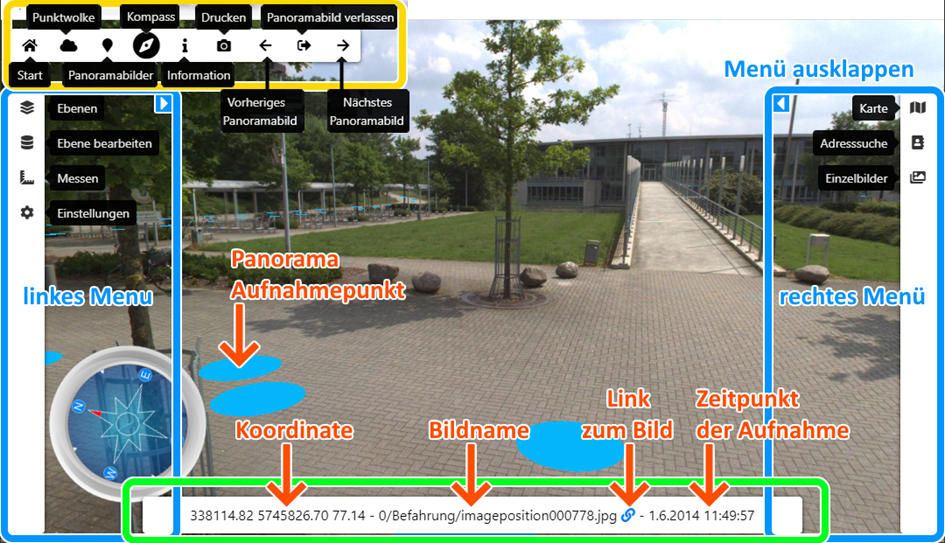
The user interface is divided into the following areas:
- Quick access menu (outlined in yellow)
- Left and right menu bars (outlined in blue)
- Information bar (outlined in green)
Controls
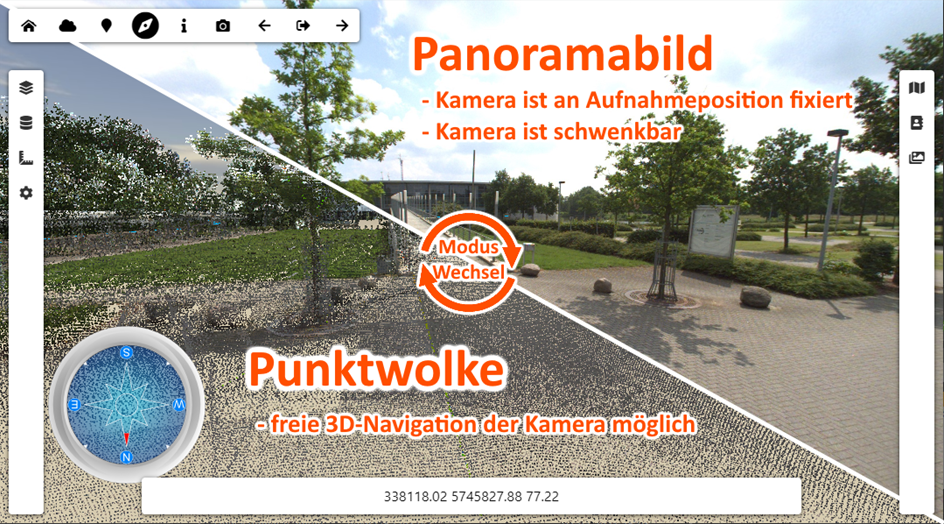
Panorama display mode
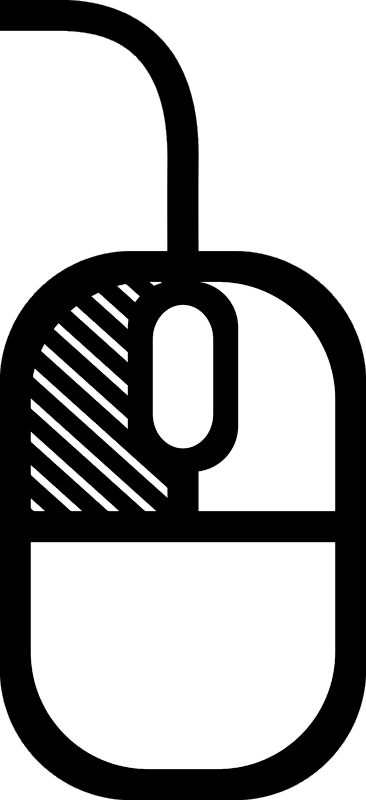 You can look around in the panorama picture by holding down the left mouse button and moving the mouse in the desired direction.
 Use mouse scroll wheel forwards / backwards to zoom in on the image.
 Using keyboard keys arrow -> or arrow <- you can jump to the next or previous panorama position.
Point cloud display mode
In free 3D navigation mode you can view the scene from any position.
To look around, hold down the left mouse button and move the mouse in the desired direction.
 To move, hold down the right mouse button and move the mouse in the desired direction (height Z remains unchanged). Hold down the scroll wheel to change the height.
Scroll wheel forwards / backwards to move the camera in the direction of the mouse pointer.
Point cloud display mode on mobile devices (e.g. tablet, smartphone)
On mobile devices there is navigation help in the form of screen areas that correspont to different types of 3D navigation.
Screen areas can be displayed on mobile devices by holding your finger down for a short moment (“long press“).
You can perform the following actions by swiping (“wipe“) in the corresponding area, even if the screen areas are hidden:
|
Height (Height Z remains)
|
Look around (Turn, while position remains)
|
Height (Height Z remains)
|
|---|---|---|
|
Move (Height Z remains)
|